Contact Us

If you still have questions or prefer to get help directly from an agent, please submit a request.
We’ll get back to you as soon as possible.

Please fill out the contact form below and we will reply as soon as possible.

  • Contact Us
English (US)
US English (US)
FR French
DE German
  • Home
  • Satos
  • Satos: User Interface | Controls | Functions | Handling

Control panels (Satos)

Written by Axel Schmidt

Updated at March 16th, 2026

Contact Us

If you still have questions or prefer to get help directly from an agent, please submit a request.
We’ll get back to you as soon as possible.

Please fill out the contact form below and we will reply as soon as possible.

  • Stelos 800 L
    Stelos: Safety Instructions – read before use | Environment Stelos: Firmware update Stelos: User Interface | Controls | Functions | Handling Stelos: Technical Data Stelos: Remote control | Flash triggering Stelos: Power supply | Battery Stelos: Maintenance | Repair | Warranty Stelos: Accessories & Spare Parts Stelos: Error messages
  • Satos
    Satos: Safety Instructions – read before use | Environment Satos: Firmware update Satos Satos: User Interface | Controls | Functions | Handling Satos: Technical Data Satos: Remote control | Flash triggering Satos: Power supply | Battery Satos: Maintenance | Repair | Consumables | Spare parts | Guarantee Satos: Accessories Satos: Charging station for up to 4 slide-in batteries
  • Pulso L
    Pulso L: Safety Instructions – read before use | Environment Pulso L: Firmware update Pulso L: User Interface | Controls | Functions | Handling Pulso L: Technical Data Pulso L: Maintenance | Repair | Consumables | Spare parts | Guarantee Pulso L: Accessories
  • Siros S
    Siros S: Safety Instructions – read before use | Environment Siros S: Firmware update Siros S: User Interface | Controls | Functions | Handling Siros S: Technical Data Siros S: Remote control | Flash triggering Siros S: Power supply Siros S: Maintenance | Repair | Consumables | Spare parts | Guarantee Siros S: Accessories
  • Siros L
    Siros L: Safety Instructions – read before use | Environment Siros L: Firmware update Siros L Siros L: User Interface | Controls | Functions | Handling Siros L: Technical Data Siros L: Remote control | Flash triggering Siros L: Power supply | Battery Siros L: Maintenance | Repair | Consumables | Spare parts | Guarantee Siros L: Accessories
  • Scoro E + S
    Scoro E & S: Safety instructions - read before use | Environment Scoro E & S: User interface | Controls | Functions | Handling Scoro E & S: Technical Data Scoro E & S: Remote control | Flash triggering Scoro E & S: Maintenance | Repair | Consumables | Spare parts | Guarantee
  • Move 1200 L
    Safety Instructions – please read before use | Environment Firmware update Move User Interface | Functions | Handling | Controls Technical Data Remote control | Flash triggering Power supply | Battery Maintenance | Repair | Consumables | Spare parts
  • RFS 2.1
    RFS 2.1: Safety Instructions - read before use RFS 2.1: Scope of Delivery and product overview RFS 2.1: Technical Data RFS 2.1: Operation as transmitter or receiver RFS 2.1: transceiver as transmitter RFS 2.1: Trouble shooting RFS 2.1: Accessories
  • RFS 2.2
    RFS 2.2: Safety Instructions - read before use RFS 2.2: Scope of Delivery and product overview (RFS 2.2) RFS 2.2: transceiver as transmitter RFS 2.2 transceiver as receiver RFS 2.2: Technical Data RFS 2.2: Firmware Update
  • RFS 3
    RFS 3: Safety Instructions – read before use | Environment RFS 3: Scope of delivery and operating elements RFS 3: User Interface | Controls | Functions | Handling RFS 3: Firmware Update RFS 3.0 RFS 3: Compatibility RFS 3: Technical Data RFS 3: Maintenance | Repair | Consumables | Spare parts | Guarantee RFS 3: Trouble shooting
  • Pulso G, Unilite and Picolite
  • LED F160
    LED F160: Safety instructions - read before use | Environment LED F160: Firmware Update LED F160 LED F160: User Interface | Controls | Functions | Handling LED F160: Technical Data LED F160: Maintenance | Repair | Error Messages| Guarantee LED F160: Accessories
  • Scope D50
    Scope D50: Videos
  • Compatibility (Lamp <-> light shaper | Lamp <-> power pack)
  • Locate your distributor or dealer
+ More
  • Stelos 800 L

    • Satos

      • Pulso L

        • Siros S

          • Siros L

            • Scoro E + S

              • Move 1200 L

                • RFS 2.1

                  • RFS 2.2

                    • RFS 3

                      • Pulso G, Unilite and Picolite

                        • LED F160

                          • Scope D50

                            • Compatibility (Lamp <-> light shaper | Lamp <-> power pack)

                              • Locate your distributor or dealer

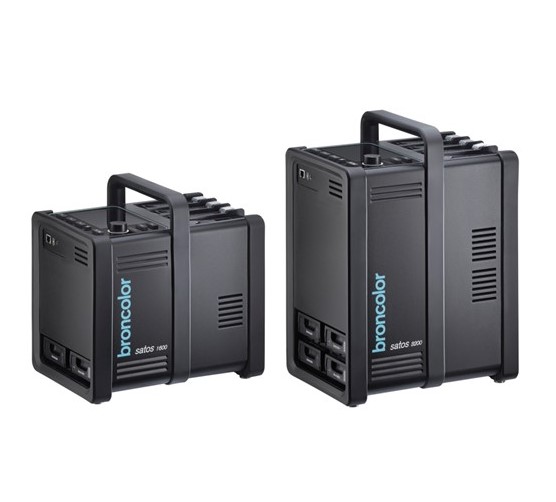
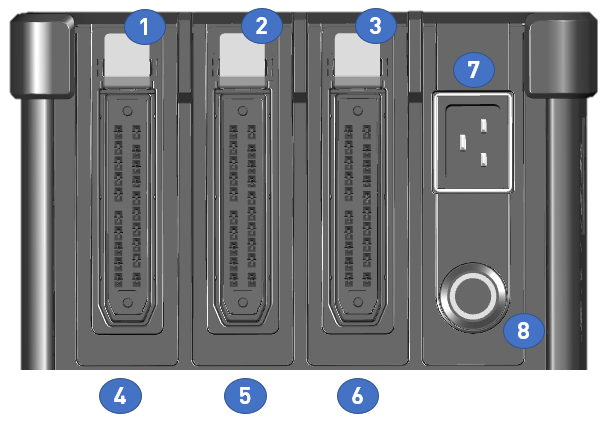
                                The following illustrations are intended to familiarize you with the control panels of the Satos power pack:


                                Ein Bild, das Elektronik enthält.

Automatisch generierte Beschreibung


                                Number

                                Function

                                1-3

                                Locking spring: Press down to remove the light plug.

                                4

                                Light socket 1

                                5

                                Light socket 2

                                6

                                Light socket 3

                                7

                                Power cable junction box

                                8

                                Power switch with LED light ring


                                Switch on the device:

                                Short push-button action (< 2 seconds)
                                The "Welcome screen" is displayed for several seconds. The LED ring glows blue.


                                Switch off the device:

                                Short push-button action (< 2 seconds)

                                A "Goodbye screen" is displayed for several seconds. The LED ring blinks for approx. 10 seconds.


                                Once the LED ring turns off completely, there is no more mains power being detected and the batteries are not being charged.


                                After Satos has been shut down, a steady blue LED ring indicates that mains power is still available and the batteries are being recharged.

                                Do not remove the power elements while Satos is booting or shutting down.


                                Forced shutdown:

                                If the control menu becomes "hung up" or another malfunction occurs, you can immediately switch off the device by pressing the push-button for an extra long time (> 6 seconds).


                                If the LED ring flashes quickly ten times, this indicates that the batteries are discharged too much or startup is not possible.


                                Ein Bild, das Gerät, Elektronisches Gerät, Multimedia, Elektronik enthält.

Automatisch generierte Beschreibung


                                Number

                                Function

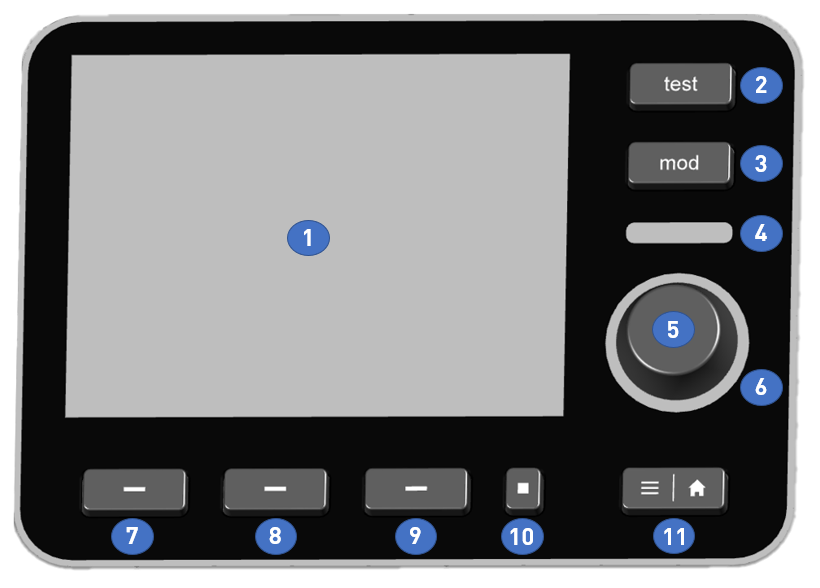
                                1

                                Multi-touch enabled display. Multiple finger touches can be processed at the same time.

                                2

                                Triggering a test flash. All connected and active lights are flashing simultaneously.

                                3

                                Short push-button action: The modeling light is switched on or off.

                                Long push-button action: The modeling light switches to "full" (maximum brightness). When the "mod" push-button is pressed shortly again, the modeling light switches back to the setting selected (in the submenu).

                                4

                                Optical cell: 
                                Triggers the flash based on a light pulse (if it is activated in the submenu

                                5

                                Push/turn control
                                Enables navigation on the display. In addition to clockwise and counterclockwise turns, you can confirm a selection by pressing down.


                                Normal turn: The focus frame position shifts one position to the right or to the left, or the power (flash energy) is changed in 0.1 intervals. 


                                Quick turn ("twist function"): The power (flash energy) is changed in 1.0 intervals. 

                                6

                                LED ring around push/turn control

                                Indicates the flash recharging ("recycling") visually. The LED switches off when the capacitors are being recharged and no additional flash can be triggered yet.

                                Once charging has been completed and the next flash can be triggered, this indicator glows a constant blue. 


                                In addition, this LED ring functions as a cognition light (colors: blue, green, violet, yellow, turquoise).


                                7

                                Short push-button action: Light channel number 1 is (de)selected.


                                Long push-button action: Light channel number 1 is temporarily deactivated ("disabled"). Pressing the pushbutton again switches this light back on ("enable").

                                8

                                Short push-button action: Light channel number 2 is (de)selected.


                                Long push-button action: Light channel number 2 is temporarily deactivated ("disabled"). Pressing the pushbutton again switches this light back on ("enable").

                                9

                                Short push-button action: Light channel number 3 is (de)selected.


                                Long push-button action: Light channel number 3 is temporarily deactivated ("disabled"). Pressing the pushbutton again switches this light back on ("enable").

                                10

                                Short push-button action: The "Master push-button" selects or deselects all connected lights at the same time.


                                Long push-button action: All connected lights can be temporarily deactivated ("disabled") at the same time. Pushing the button again switches on all lights at the same time ("enable").

                                11

                                This toggle push-button switches back and forth between the main view and the submenu each time you press it. This push-button can be used at any time in any level of the menu.


                                Satos can be controlled according to your requirements and preferences: You can control the device via touch control, turn/push knob, physical push-button, or a combination of these control panels.


                                Tip:
                                The turn/push control unit provides a fast and precise setting of numerical values.


                                interface dashboard

                                Was this article helpful?

                                Yes
                                No
                                Give feedback about this article

                                Related Articles

                                • Control panels (Pulso L)
                                • Firmware update Satos

                                Copyright 2026 – broncolor.

                                Knowledge Base Software powered by Helpjuice

                                Expand